
Using Radaro (Assinging Jobs)
All the drivers use radaro to get there job runs etc.
I generally assign the drivers jobs the day before, to allow for any urgent and last minute consingments that have been sent out.
Open up https://account.radaro.com.au/tracking/list/orders
Username: lmd@newtech.co.nz
Password: %R6dxEJ33SY$$X
You should be assining jobs based off your scheduling screen and what you have booked throught the day/days.
To assign jobs, you can either search by OUT number eg, WH/OUT/385527 (must include WH part) or find the pin on the map to select the required job. There can be mutiple OUT's for the same address, so make sure you assign them both if they are being delivered on the same day. You should be working off the scheduling screen so you will know if you have missed anything.
Assinging a job:
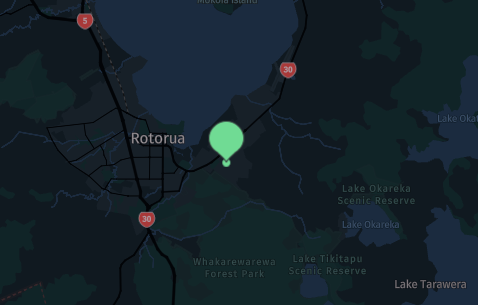
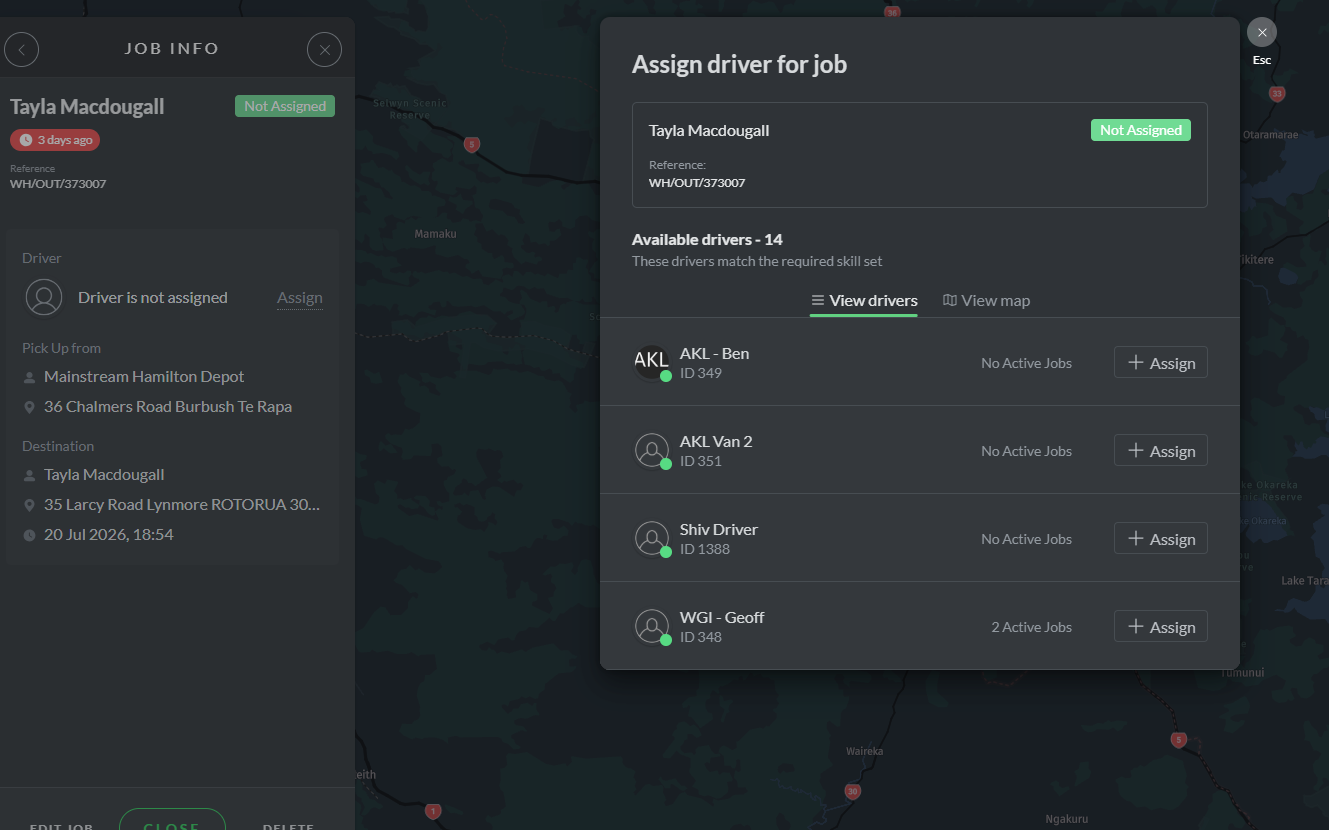
Heres an example of Platinum Homes Rotorua, an order going to Larcey Road. Tayla Madougall is the site contact. I know that Nick Murphey is the driver for this area and I want this order to be delivered on 27/08. Assign the job to Nick Murphey. After that the below screen will pop up.
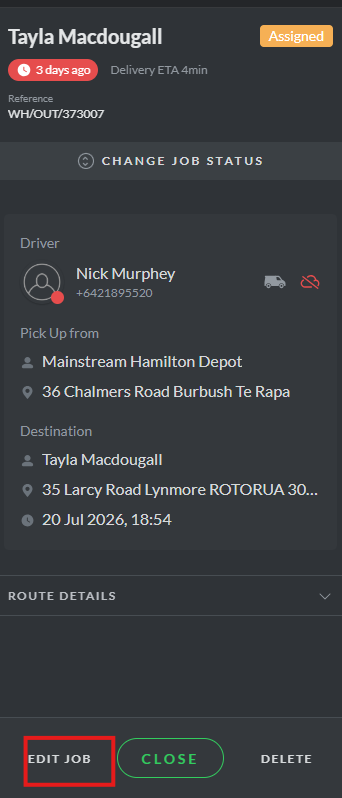
Select Edit Job
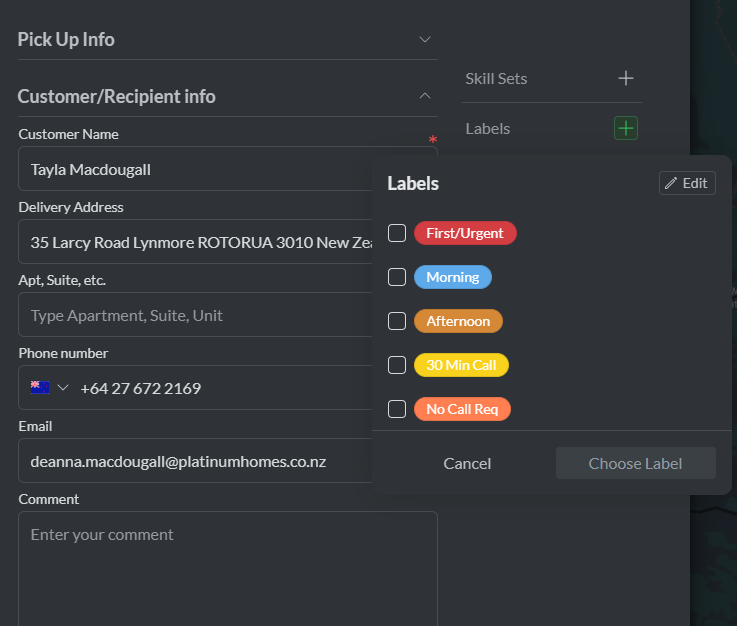
Ensure the delivery address pulls through to radaro (sometimes new developments arent loaded into google maps so double check this, we dont want to send the driver to the wrong place). Ensure the customers number is loaded into the job, paste any job notes into the comments, eg (House with black fence, or customer is not onsite but ready to receive and builders will be there) Use any labels which appears on the drivers screen if required.
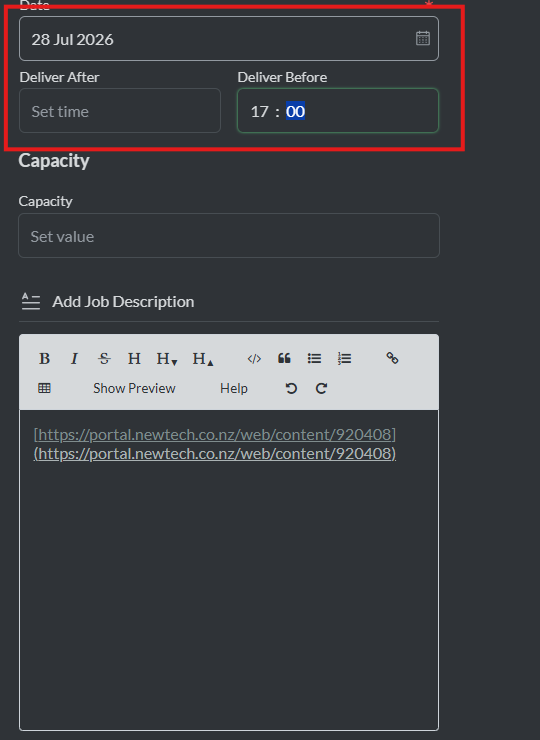
In the picture above ensure that the date is the delivery date you want the items delivered, and ensure the deliver before date is 17:00. Click save changes, and this means the job is now loaded and ready to go for Nick Murphey on the 28/07.
This is an overview of how to assign 1 job to the drivers run. Drivers will be doing mutiple jobs per day so follow the same process to assign the jobs and then unassign them all.
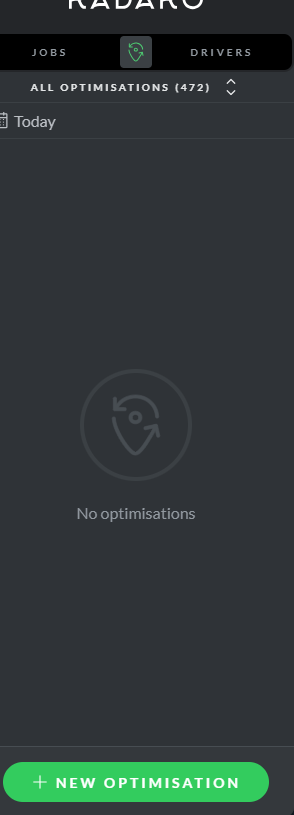
To create an optimisation, click the optimisation button below.
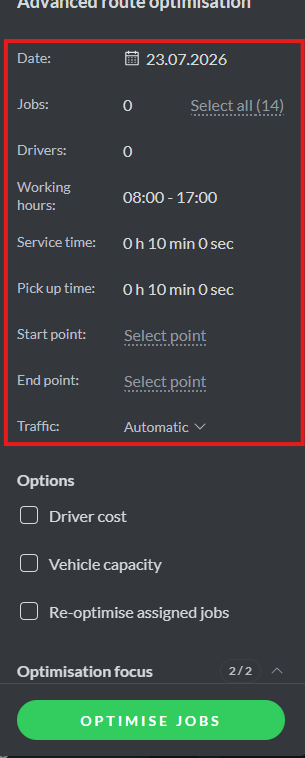
Select the correct delivery date, eg 28/07. Select all the jobs you want the driver to deliver. Select the correct driver for the days jobs, and select the hours he will do, generally 7am to 5pm. I'd leave the service time as it is, and pickup time, unless the driver is going to load the night before. Select the drivers hub, eg Nick's hub is mainstream hamilton, and select the end point, which is generally the last job address. Then select optimise jobs. Should look like the below.
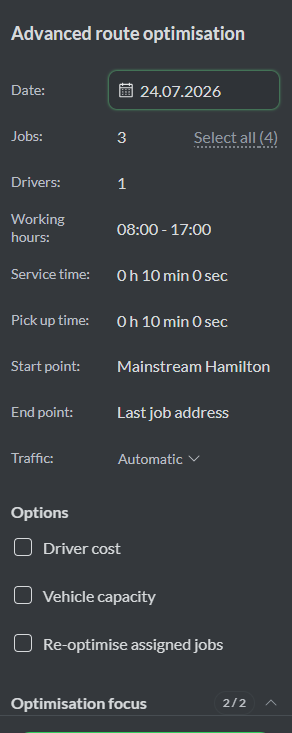
It will now bring up the optimised route for the driver, as per the below
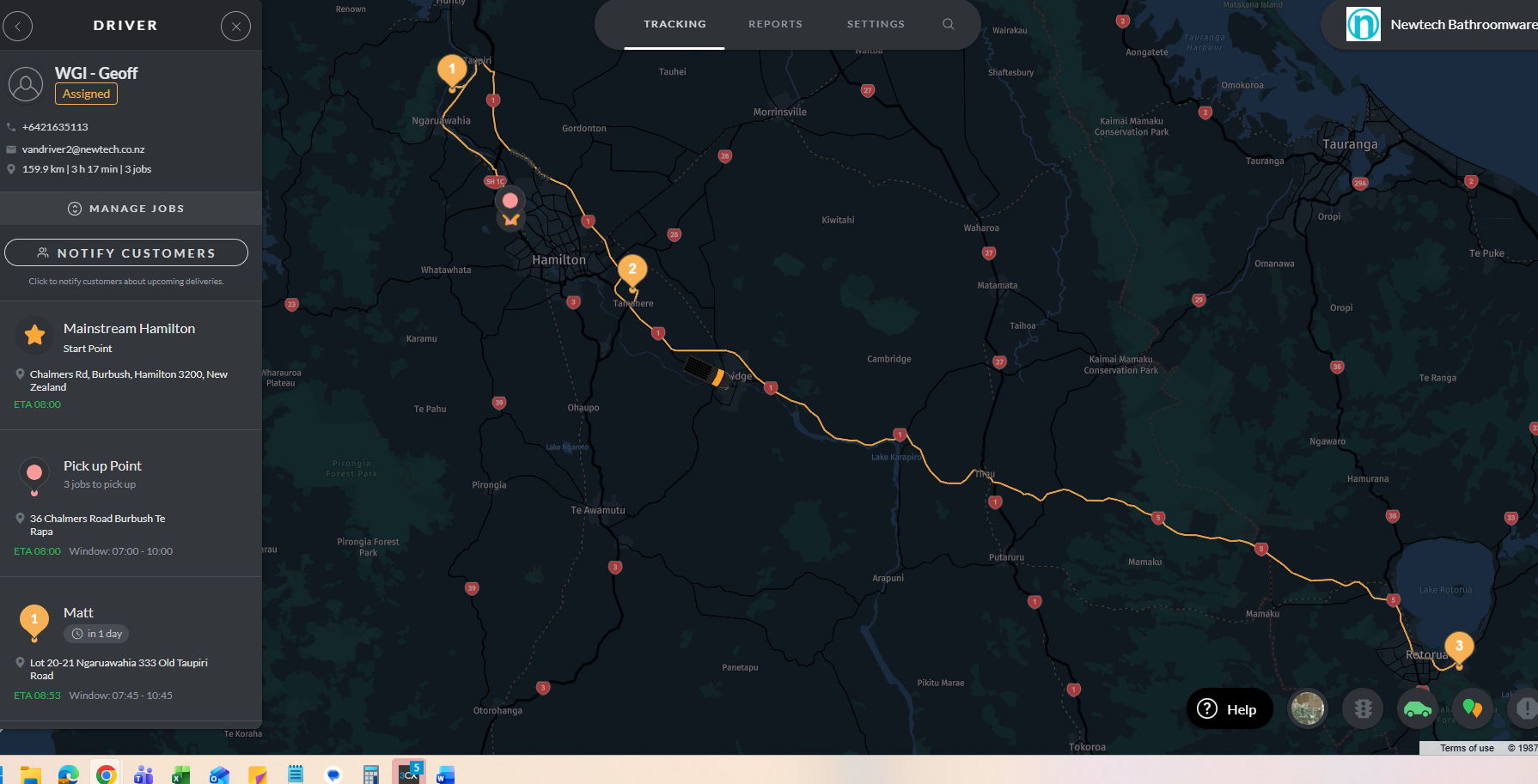
You are able to reorder the job list, move jobs etc if you want a specific job delivered at a particular time in the drivers day
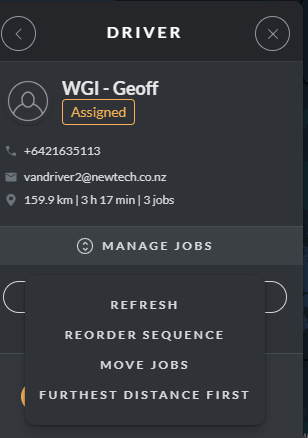
This is now loaded for the driver and will pull up on his radaro screen.